
Everyday
How to Customize Your Own Spin Wheel for Free
How to Customize Your Own Spin Wheel for Free: edit options, colors, multi-wheel flows, and settings on WheelLizard - no account required.
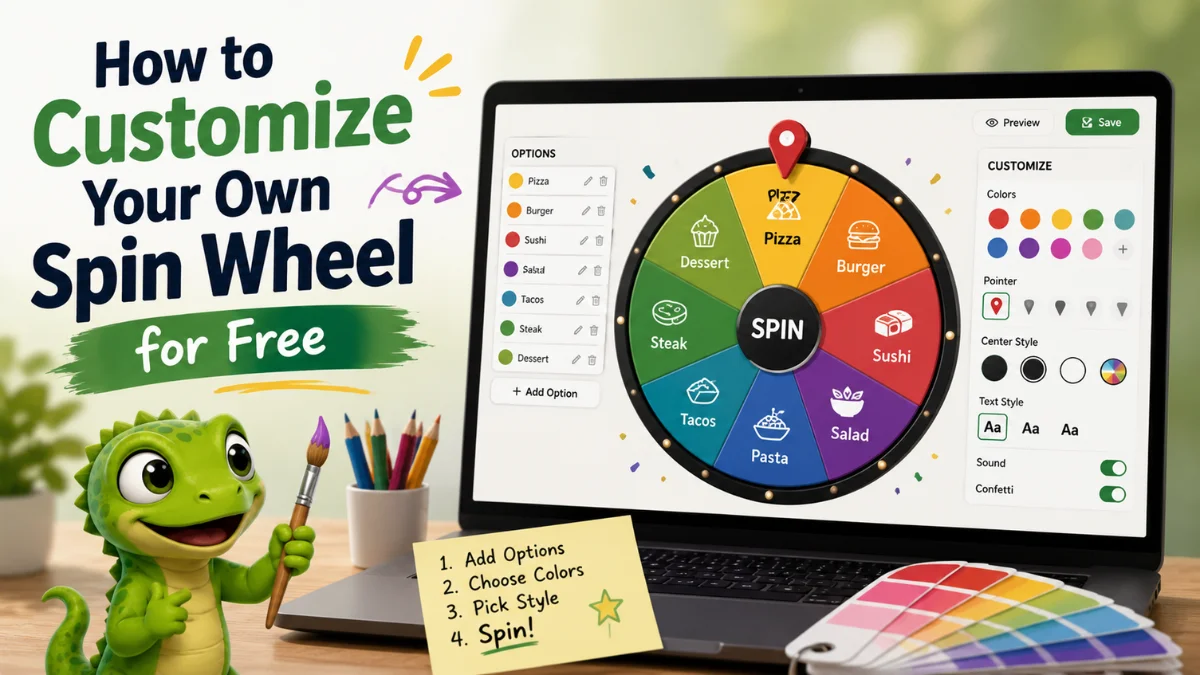
How to Customize Your Own Spin Wheel for Free starts with one idea: the wheel should match your real shortlist, not a generic demo. When the options, colors, labels, and sequence feel like yours, people trust the spin and move on faster.
With WheelLizard, you can customize a spin wheel in your browser without creating an account. This guide shows how to customize your own spin wheel for free from blank project to polished reusable spinner - including options, themes, multi-wheel flows, sound, confetti, and sharing.
What “customize” should mean for a free spin wheel
Customizing is more than picking pretty colors. A useful free spin wheel lets you control:
- Which options can land
- How those options are labeled
- Whether one wheel or a connected sequence decides the result
- Visual theme and readability
- Sound, confetti, and save/share settings
If you only change colors and leave weak options on the wheel, customization is cosmetic. If you shape the shortlist and the flow, customization becomes a decision system you can reuse.
Step 1: Start from a template or a blank project
Learning how to customize your own spin wheel for free is fastest when you begin with a structure:
- Open the templates gallery for ready-made setups like Movie Night, Decision Maker, or Classroom Activities.
- Or go to Create and build a blank multi-wheel project.
- You can also spin and edit presets instantly on the homepage playground, then save as a project.
Templates are not locked designs. They are starting points. Replace every label with options your group actually accepts.
Step 2: Customize the options list
Options are the heart of customization. On WheelLizard, edit entries one per line in the sidebar or studio editor.
Strong option rules:
- Only include choices everyone can live with
- Keep labels short enough to read on the wheel
- Use 6 to 12 options for clarity; prune weak ones
- Remove seasonal or unavailable items promptly
- Agree on one re-spin rule before you customize for group use
Example: a lunch wheel should list real nearby places or meal styles, not aspirational restaurants outside your break window. That is the practical side of how to customize your own spin wheel for free without creating frustration.
Step 3: Customize colors and theme
Visual customization helps people spot segments quickly and makes the spinner feel on-brand for a classroom, party, or brand event.
On WheelLizard you can:
- Rely on the built-in theme palette so slices stay readable
- Keep high-contrast text against slice colors
- Avoid tiny labels on overcrowded wheels (8+ options use tighter typography automatically)
- Match energy: playful themes for parties, calmer themes for meetings
Tip: readability beats rainbow overload. If a slice color fights the text, change the theme or shorten the label. A free custom spin wheel that nobody can read is not finished.
Step 4: Customize with multiple wheels when one slice is not enough
Single-wheel customization is perfect for “who goes first” or “yes / no / later.” Multi-wheel customization is better when a complete answer needs parts.
Examples of customized sequences:
- Cuisine -> Cook or order -> Who picks
- Genre -> Snack -> Who chooses the title
- Subject -> Study method -> Minutes
- Energy -> Weekend activity -> Who books
- Recipient -> Budget -> Gift lane
On WheelLizard, hit Spin all so the sequence runs automatically. That is one of the biggest advantages when you customize your own spin wheel for free on a multi-wheel platform instead of a one-result toy.
Related guides: How to Use a Free Spin Wheel to Make Decisions, movie night spinner ideas, and decision wheel spinner.
Step 5: Customize sound, confetti, and interaction
Small interaction settings change how the spin feels in a room:
- Sound on for classrooms and parties
- Sound off for quiet offices or libraries
- Confetti on for celebrations and prize draws
- Confetti off for everyday logistics
Customize these to match the moment. A chore wheel does not need fireworks. A quiz finale might.
Step 6: Name, save, and reuse your customized wheel
How to customize your own spin wheel for free is incomplete until you can find it again next week.
- Give the project a clear name (“Friday Lunch - Under $15”).
- Save it under My Projects in your browser.
- Update options as menus, rosters, or seasons change.
- Export JSON if you want a backup across devices.
- Share a link when collaborators need the same setup.
No account is required. Projects stay on your device, which keeps customization fast and private.
Customization ideas by use case
- Teachers: Student -> Subject -> Question number, with school-safe labels
- Families: Player -> Game -> Twist for game night
- Teams: Icebreaker prompt -> Speaker -> Time box
- Creators: Content type -> Topic lane -> Format
- Event hosts: Prize -> Winner style -> Bonus twist
- Couples: Vibe -> Activity -> Picker
Browse more starting points in the templates gallery, then replace every default label with your real shortlist.
Common customization mistakes
The biggest mistake is decorating a wheel full of options nobody wants. The second is packing twenty tiny labels that cannot be read from the back of a room. The third is never saving the project, so you rebuild from scratch every time. Fix those by pruning honestly, testing readability on a phone and a projector, and saving as soon as the shortlist feels right.
Also avoid unlimited re-spins after customization. If the group rejects results often, the options list is wrong - not the spinner.
Free customization vs paid spinner apps
Paid tools can add brand kits, accounts, and analytics. Many people only need a clear shortlist, fair spin, and a saved project. WheelLizard focuses on that free path: customize options, connect wheels, save locally, and share when needed.
If your goal is simply how to customize your own spin wheel for free for classrooms, parties, or everyday decisions, start with options and sequence first. Theme polish comes second.
A 10-minute customization checklist
- Pick template or blank project.
- Write only acceptable options.
- Add a second or third wheel if the answer needs parts.
- Choose a readable theme.
- Set sound and confetti for the setting.
- Spin once as a test.
- Agree the re-spin rule.
- Save and name the project.
That checklist is the shortest version of how to customize your own spin wheel for free without getting lost in settings.
Frequently asked questions
How to Customize Your Own Spin Wheel for Free on WheelLizard?
Open Create or a template, edit options one per line, add more wheels if needed, choose theme and interaction settings, then save the project in your browser. No signup required.
Do I need design skills to customize a spin wheel?
No. Start with clear options and a readable theme. Fancy design is optional; a fair shortlist is not.
Can I customize more than one wheel in one project?
Yes. Connect multiple wheels so one spin sequence can return a full result, such as cuisine, method, and who decides.
Will my customized spin wheel stay free?
WheelLizard lets you build, customize, save, and spin without an account. Projects store in your browser, and you can export JSON for backup.
What should I customize first: colors or options?
Options first. Colors and theme second. A beautiful wheel with unacceptable options still creates arguments.
Customize your free spin wheel today
You do not need a paid account to make a spinner feel like yours. Learn how to customize your own spin wheel for free once: honest options, clear sequence, readable theme, save, reuse. Open Create, start from the templates gallery, or try the homepage playground and save your project when it feels right.